¶ Players
Players are the central entity in Mentor. A player represents a single end user who interacts with games, payments, and responsible gaming features. All activity, risk assessments, limits, playbreaks, and KPIs are evaluated and stored on player level.
From a Responsible Gaming perspective, players are continuously monitored to identify risky behavior early and enable timely, proportionate actions. Mentor is designed to support operators throughout this process by combining analytics, workflows, and documentation in one place.
The Players area consists of two main parts:
- Player Table – overview and triage of all players
- Player Profile – detailed view of a single player
¶ Player Table
All your players are found in this table. Clicking on an entry navigates you to the player profile.
The table lists the most important columns to help you filter and narrow down your player base. It is optimized for fast scanning, filtering, and prioritization.
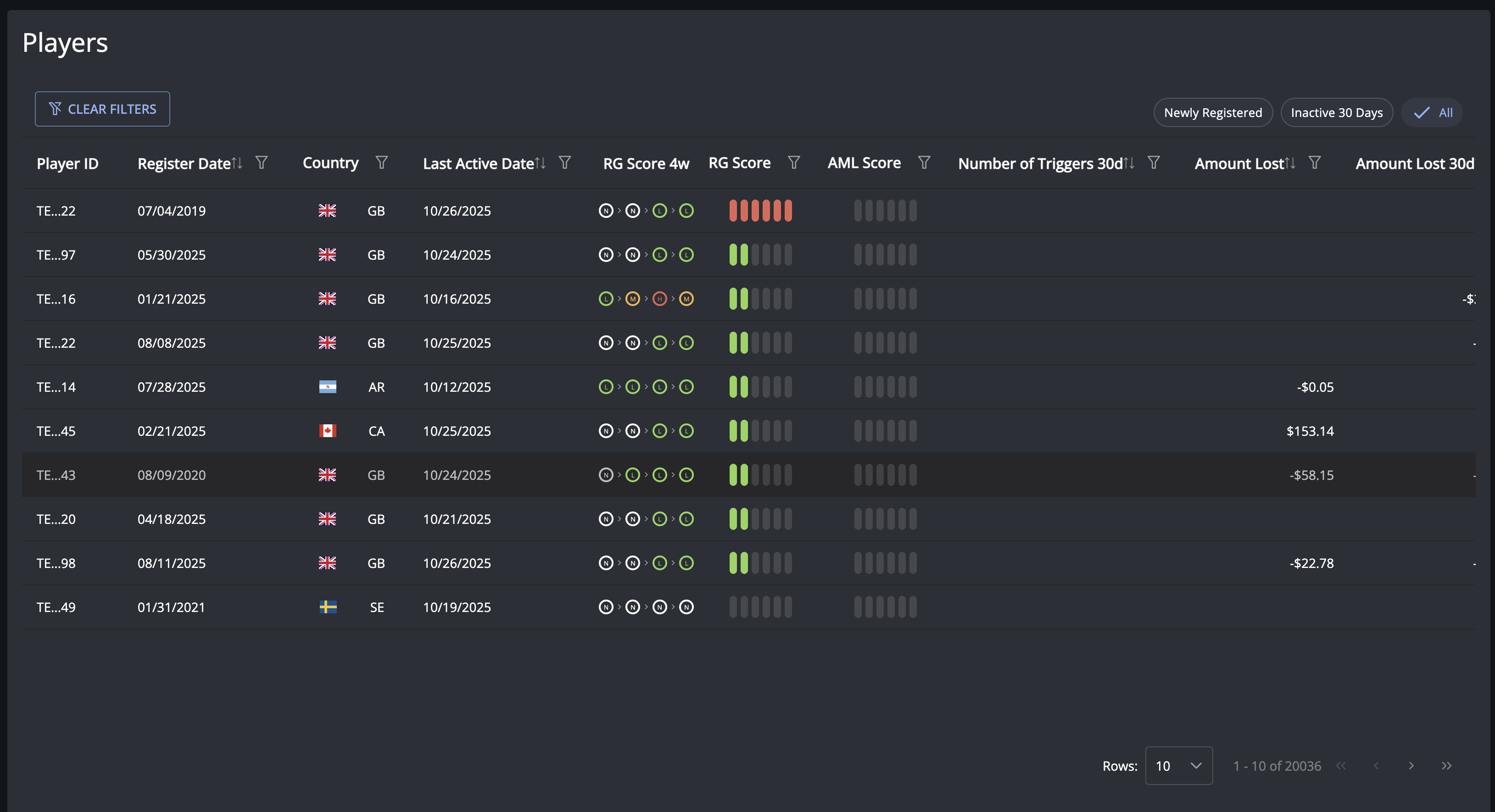
¶ Purpose
The player table is designed to help operators:
- monitor player behavior and risk
- detect unusual or harmful patterns
- prioritize players that require attention
- quickly navigate into detailed player profiles
¶ Filtering and Sorting
Each column can be filtered and sorted individually.
- Filter and sort options are indicated by icons in the column header
- Multiple filters can be combined
- Filters apply instantly to the result set
This allows very precise segmentation, such as identifying high‑risk players within a specific country or time range.
¶ Templates and Presets
You can choose from preconfigured templates, or store and reuse your own set of filters and columns.
¶ Templates
Templates are predefined views for common use cases and are available above the table on the right side:
- Newly registered – players who registered recently
- Inactive 30 days – players with no activity in the last 30 days
Templates allow fast switching between frequently used views without manual filtering.
¶ Custom Presets
To create your own preset:
- Choose a template as a base
- Adjust filters and columns to your needs
- Save the result as its own preset
Your preset can then be selected at any time, just like a template.
¶ Settings
The settings icon gives access to table-level configuration:
- Column Manager – choose and arrange the visible columns
- Export as CSV – export the current view
¶ Column Manager
The Column Manager helps you show only the columns that really matter and bring them into your desired order.
- Show or hide individual columns
- Reorder columns to match your workflow
- Save the layout as part of a custom preset
¶ CSV Export
Your current filters and columns can be exported as a CSV file for external use.
To export, click Export as CSV in the settings area. The export reflects exactly what is currently shown in the table.
¶ Number of Rows
At the bottom of the table, you can adjust how many rows are displayed per page.
- Default: 10 players
- Maximum: 90 players
Increasing the number of rows allows faster scanning of larger result sets.
¶ Important Columns
The player table contains many columns. Most values such as dates, amounts, or counts are self-explanatory. The following columns provide additional context and are explained in more detail.
¶ RG Score (4w)
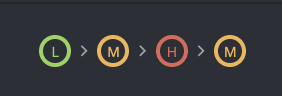
The RG Score (4w) column shows the Responsible Gaming score for the last four weeks, displayed week by week.
This helps operators to:
- understand how the risk level developed over time
- identify recent escalations
- distinguish short-term spikes from long-term risky behavior
- spot improving or worsening trends
Showing four weeks side by side provides context without opening the player profile.
¶ RG Score (Severity)
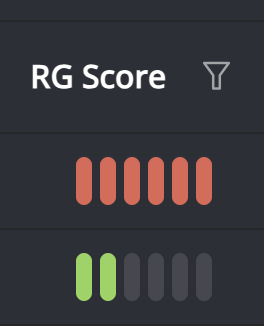
This column visualizes the severity of the current RG score using a small bar chart.
- 6 bars represent the severity level
- Colors indicate the risk category:
- Low risk – green
- Medium risk – yellow
- High risk – red
The chart allows immediate identification of currently critical players.
¶ Status
To support Responsible Gaming, playbreaks, and system-driven decisions, Mentor uses a unified customer status model. Statuses are either controlled by Mentor or provided by the client.
¶ Mentor-Controlled Statuses
These statuses are fully managed by Mentor and updated automatically:
- PENDING
- ACTIVE
- RESTRICTED
- SUSPENDED
- SELF_EXCLUDED
Status changes are derived from RG limits, playbreaks, and activity signals.
¶ Client-Controlled Statuses (Final)
These statuses are provided by the client and treated as final:
- CLOSED
- BANNED
Once received:
- No internal logic is applied
- No further transitions occur
- Mentor never overrides these statuses
¶ Status Definitions
¶ PENDING
Initial status for new players with no received activity.
¶ ACTIVE
Full access, no active limits or playbreaks.
¶ RESTRICTED
Partial access due to active RG limits.
Expected default for many active players.
¶ SUSPENDED
Temporary full restriction initiated by system logic.
¶ SELF_EXCLUDED
Player‑initiated playbreak with active end date.
¶ CLOSED
Permanent account closure provided by the client.
¶ BANNED
Permanent punitive exclusion provided by the client.
¶ Player Profile
The Player Profile provides a detailed, comprehensive view of a single player. It combines analytics, history, actions, and documentation in one place.
The profile is segmented into multiple sections. While each section serves a specific purpose, Mentor summarizes the most important information immediately when the profile is opened.
¶ Player Overview (Header)
The player overview gives an instant snapshot of the current state of the player.
¶ Profile Widget
Located on the left side, this widget contains core player information.
- Shortened Player ID with copy-to-clipboard option
- Global Add button for actions and attachments
- Activity status displayed as readable text:
- last seen now
- last seen X min ago
- last seen today, HH:mm
- last seen X days ago
- absolute date for older activity
- Night activity is indicated with a moon icon
¶ Profile Information
Shows:
- Assigned data source
- Country
- Current status
- Active limits or playbreaks
¶ Tags
All assigned tags are listed and can be removed directly from the profile.
¶ Basic Details
- Gender
- Age
- Spoken languages
- Player’s local time
- Account age
¶ Additional Details
If available:
- First and last name
- Address
- Occupation
- Citizenship
¶ KPI Strip
Displays the most important KPIs to indicate velocity and severity.
Examples:
- Loss
- RTP
- Total playing duration
¶ Recent Transactions
Banking-style transaction list showing recent deposits and withdrawals.
¶ Risk Widget
Central risk score overview with simplified visualization.
Detailed explanation can be found in the Risk Score section (link).
¶ AI Summary
An AI-generated summary provides a concise, structured overview of the player’s current situation to speed up screening and decision-making.
¶ Player Timeline
Chronological view of key events, activities, and changes related to the player.
¶ Notes and Files
This area is split into two sections.
¶ Notes
- Free-text notes added by operators
- Supports replies to create threads
- Used for internal communication and documentation
- Files can be attached directly to notes
¶ Files
- Securely stored and encrypted
- Only accessible through Mentor
- Each file has a required type (configured per tenant)
- Files can trigger automation workflows
- Origin (notes, cases, profile) is visible
¶ Risk Profile
Shows the main KPI drivers influencing the current risk score.
- Drivers are weighted
- Most influential drivers appear first
- Negative drivers indicate positive behavior
¶ Cases
All related case details are visible directly in the player profile for easier navigation.
Detailed case management is described in the Cases section (link).
¶ Player Assessments
Chronological list of engagements between the player and Mentor.
Two types are tracked:
¶ Actions
Events that directly affect the player’s ability to play.
Common examples:
- Limits
- Playbreaks
Additional actions can be configured and initiated via cases or directly from the profile.
¶ Limits
- Monetary or time-based
- Provided by the system
- Cannot be created manually in the platform
¶ Playbreaks
- Player-initiated → Self Exclusion
- Operator/system-initiated → Suspension
¶ Interactions
Any communication or acknowledgment involving the player.
Examples:
- Messages
- Assessments
- Notifications
¶ Integrated Assessment Tools
¶ Reality Check
Compares perceived vs actual behavior across key KPIs to assess self‑awareness.
¶ Self Test
PGSI questionnaire with results feeding back into Mentor.
¶ Messages
Configured automated or manual messages used to guide players toward safer behavior.
¶ Additional Interactions
Custom interactions can be defined to match existing workflows.
The more structured data is captured, the better profiling and reporting become.